
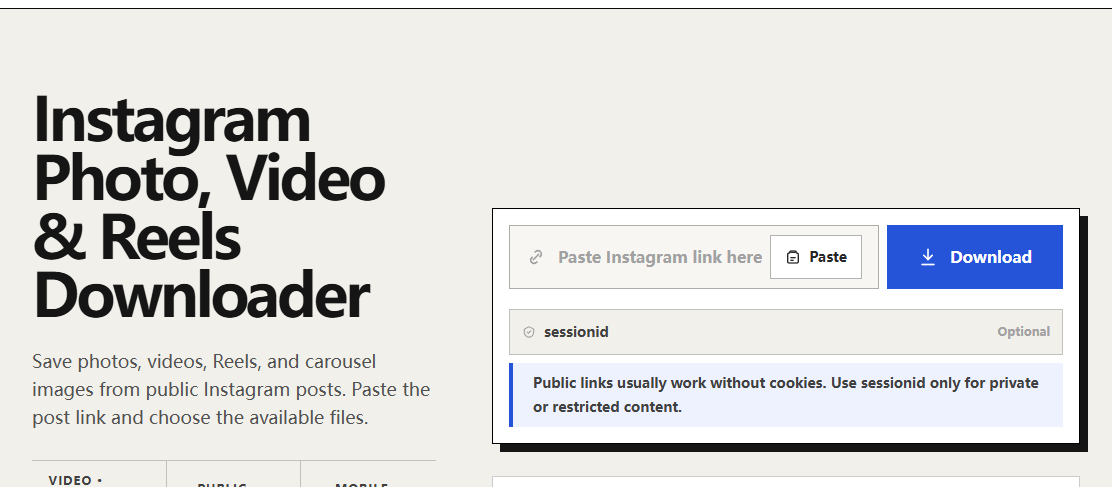
An Instagram carousel can contain several media items, so downloading the first visible picture does not mean you have saved the whole post. Before retrying, compare the carousel itself with the files returned by the downloader. That tells you whether an item was never retrieved, was overlooked, or failed while saving.
Make a quick inventory of the original carousel
Open the post on Instagram and move through its slides. Note the number and order of the items you need. If some slides play as video, record that too: the expected result may be a mixture of still images and video files.
Use the post’s own share link. A profile URL identifies the account, not the carousel, and an address copied from an individual preview image does not describe the full post. Reels and photo carousels also have different media expectations even when both appear in the same profile grid.
Check the returned media one item at a time
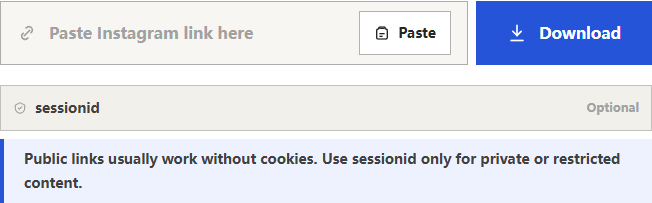
- Paste the public post link into the Instagram downloader and select Download.
- Compare the returned previews with the original carousel, in order.
- Save each image or video you need using its own available control.
- Open the saved files and compare their contents, rather than trusting filenames alone.
For example, if the original post contains two photos followed by a clip, three image files would not be a complete equivalent. One may be the video cover. This is a check you can apply to your own result, not a claim that every carousel returns that pattern.
Find where the missing item disappeared
- The item appears in the result but not in your folder: save that item again from a fresh result. Check your browser’s download list for a blocked, pending, or failed transfer.
- The item appears in your folder twice: compare both files. Two names can still contain the same image if you selected the same control twice.
- The item never appears in the result: reopen the original post and copy a fresh link. If it remains missing, the current retrieval did not return the complete carousel.
- A video looks like a still: open it in a player and check for a duration. A cover image does not contain the clip.
Keep the retry simple
Try the exact public post once more in a normal browser tab. Check whether Instagram still shows the missing slide. An edited, removed, or restricted item may no longer be available in the same way it was when you first opened the post.
DLPanda cannot guarantee access to every post or carousel item. Its optional session field is a separate feature, not a required fix for every missing picture. Do not paste a password into it, and do not share session values in a screenshot or support message. If the content is restricted, ask its owner for the files rather than treating repeated download attempts as an access method.
Organize a complete set
After verifying the files, name copies in slide order and retain their true extensions. Put mixed photos and videos in the same folder if the sequence matters. Save the source post URL in a note beside the files so you can check the original context later.
When reporting a problem through DLPanda’s feedback form, describe the expected item count, the returned count, and whether the missing item is a photo or video. Include a public post link only when appropriate. That gives a more useful starting point than “download broken,” without exposing account credentials.