
Saving every picture in a TikTok slideshow does not automatically save the slideshow’s music or turn the pictures into a video. If your download contains several image files and nothing plays when you open them, that can be the expected result for a photo post.
Decide what you need to keep
- One picture: download that image from the photo results.
- The whole photo set: save each returned image and check the sequence against the original post.
- The background sound: look for a separate audio option if one is available for that post.
- One video with pictures and music: use a returned video when one exists, or assemble your permitted photos and audio in a video editor.
These choices answer different needs. A collection of images is easier to browse and edit individually. A finished video preserves a playback sequence, but it no longer gives you the original still files simply by changing its extension.
Save the images before trying to make a video
- Open the photo post on TikTok and copy its share link.
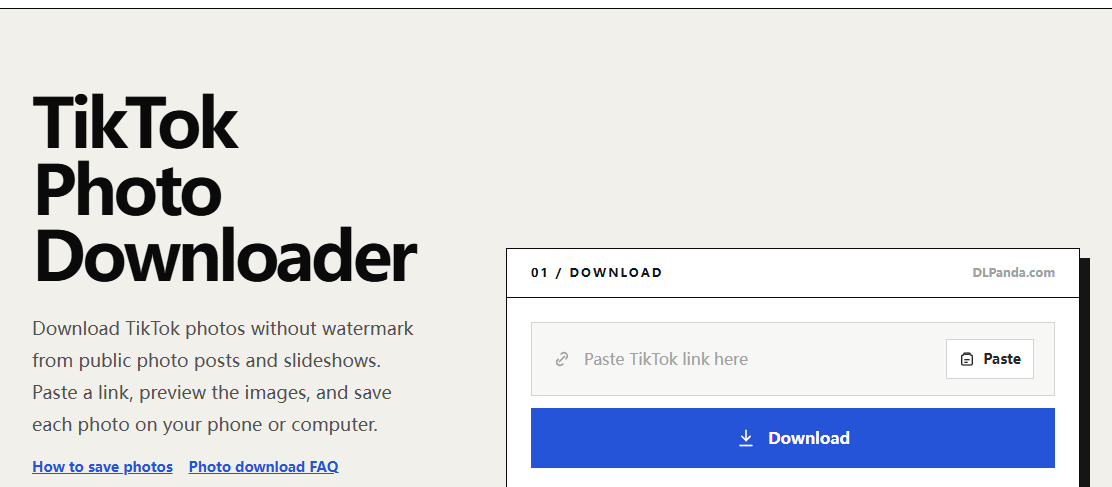
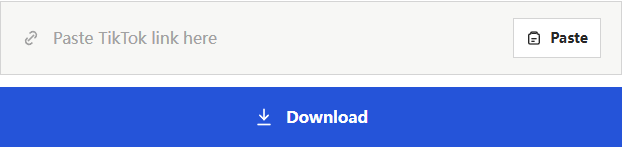
- Paste it into the DLPanda photo tool and select Download.
- Match the returned previews to the slides you want, then save each numbered image.
- Put the files into one folder and rename copies in sequence, such as slide-01, slide-02, and slide-03. Keep their real file extensions.
The photo tool currently provides individual image downloads. Do not look for a ZIP or “Download all” control on DLPanda. TikTok’s own permitted photo-save flow can offer multiple-photo selection, as explained in its official download help.
Why the sound may be missing
An image file has no audio track. Opening a JPEG or PNG cannot play the music you heard beside it in TikTok. Check whether DLPanda returned a separate sound or video option. If it did not, an audio file may not be available through the current result.
Also replay the source post with sound enabled. If the track is unavailable there, retrying an image download will not restore it. A post that still displays its pictures is not proof that its original soundtrack remains accessible.
If you need an MP4
Use a video editor to import the photos in order, choose how long each image stays on screen, and add an audio track you are allowed to use. Preview the whole sequence before exporting. Pay attention to portrait versus landscape framing: a “fill” setting may crop text near the edges, while “fit” may leave borders.
DLPanda does not create slideshow videos or reproduce TikTok’s swipe timing. Any sequence you assemble is your own edit. If the original post was already a video rather than a photo carousel, use the TikTok video downloader and inspect the video result instead.
Check your saved set
Count the saved files and compare their order with the original post. Open the first, middle, and last image rather than relying on thumbnails alone. If two filenames differ but show the same slide, you may have saved one image twice and missed another.
Before sharing an exported video, play the actual exported file and listen through a transition. An editor preview is not the final file, and a soundtrack in the source post does not establish permission to reuse it elsewhere.