
A folder full of TikTok pictures is only useful if you can identify the posts, find the right slide, and open the files later. Use this year-end checklist to prepare a photo library for 2027. It is a planning guide based on the current workflow, not a prediction of TikTok features or a claim to have tested a future release.
1. Decide what belongs in your archive
Begin with your own photos and material you have permission to keep. Separate personal references from files cleared for publication. A downloaded image and permission to reuse that image are different records, so keep a note of any permission alongside the source.
For your own posts, retain the files you created before uploading. Those files are a better foundation than a later download of a platform-processed version. TikTok also recommends keeping offline copies before posting in its download help.
2. Save complete photo sets
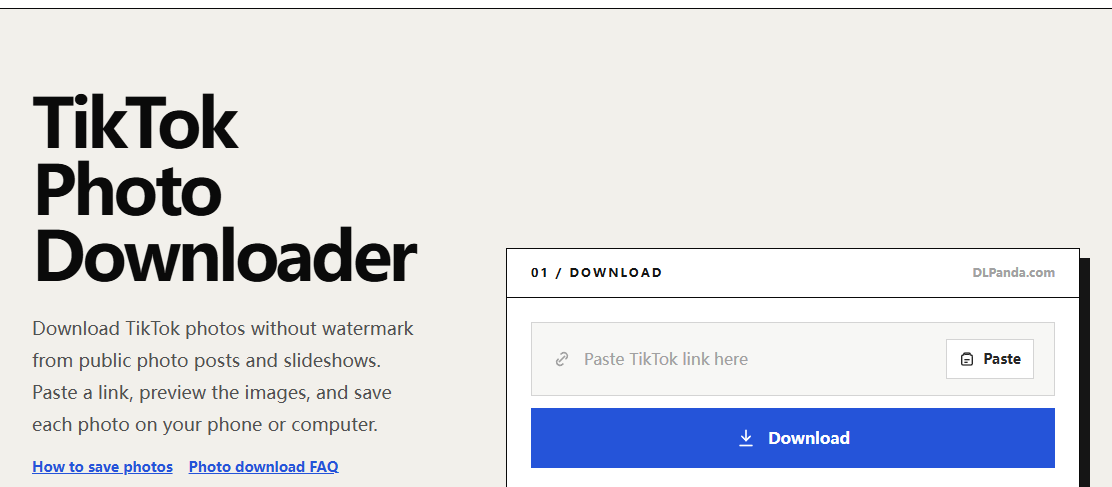
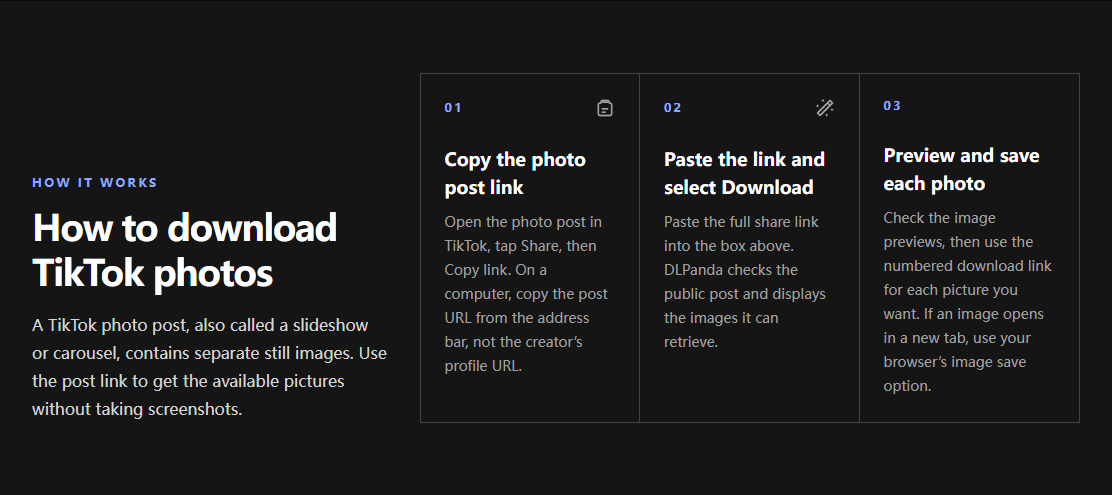
When you need a copy of an available public photo post, use the TikTok photo downloader and save the individual images returned. Compare the saved count with the slides you intended to keep. If an item is missing, record the gap rather than treating the folder as complete.
3. Use filenames that preserve order
A simple pattern is creator-postID-slide01 followed by the actual file extension. Include a short topic if it helps you search. Two-digit slide numbers keep slide02 before slide10 in ordinary filename sorting.
Choose a date convention and use it consistently. YYYY-MM-DD avoids ambiguity between US month-first and other date formats. Be explicit about whether that date means “posted on” or “saved on”; do not guess a publication date from the day you downloaded the file.
4. Store context beside the pictures
Create a small text note for each set with the public post URL, creator name as displayed, date saved, expected slide count, and any missing items. Add permission details if the images are intended for a project. Keep account passwords and session values out of these notes.
Saving a temporary media link is not a substitute for saving the file. Those links can expire, and the original post can change or disappear. The public post URL preserves context, while the local copy preserves the media you actually retrieved.
5. Keep originals and edits separate
Leave one downloaded copy unchanged. Put crops, annotations, and converted versions into an edits folder. If you assemble a slideshow video, retain the still images too; the exported video is a different asset with its own resolution and timing.
Check a converted picture at full size before deleting anything. A PNG copy is not automatically higher quality, and a screenshot of a preview is not equivalent to the linked image. For a blurry set, compare dimensions and source quality before investing time in editing.
6. Verify a second copy
Copy the archive to another storage location you control. Open several files from that second location, including one from a different folder and the accompanying notes. A successful copy notification alone does not prove that you can find and open the material when you need it.
Choose a review date in early 2027 to check that the archive is still accessible and your current tool workflow still matches the instructions. There is no need to rename every file or redownload every post just because the calendar changes. Update the archive when its contents or your needs change.