
A TikTok photo can look sharp in a small feed preview and soft when you set it as a full-screen wallpaper. Before downloading it again, check what you actually saved: a screenshot, a frame from a video, or an image file from a photo post. Those are different starting points, and changing a filename will not add detail.
Start with the type of post
Open the original post. Can you move through separate still images, or does a video player run through a sequence of pictures? A photo slideshow has individual images to retrieve. A video made from photos may only provide a video file; a frame extracted from it is limited by the video resolution and compression.
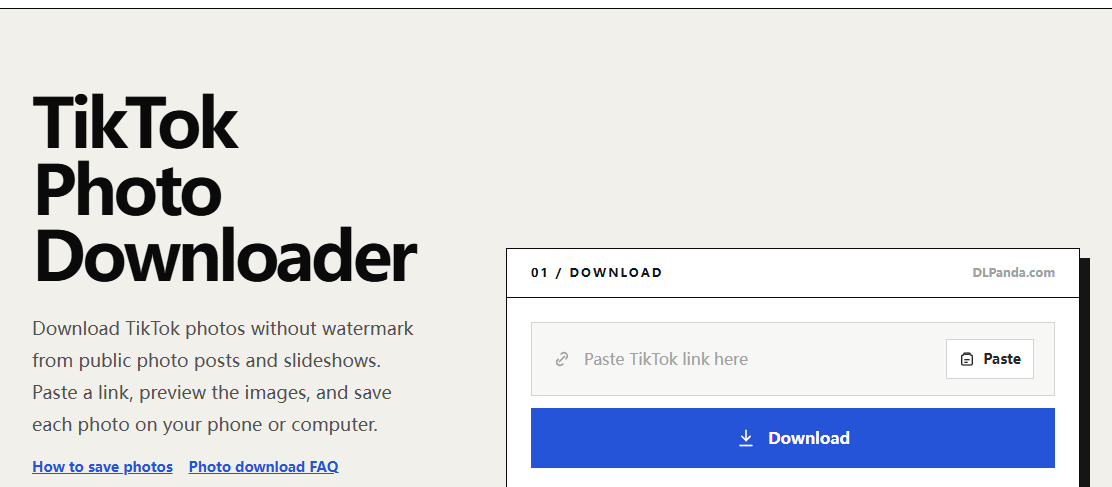
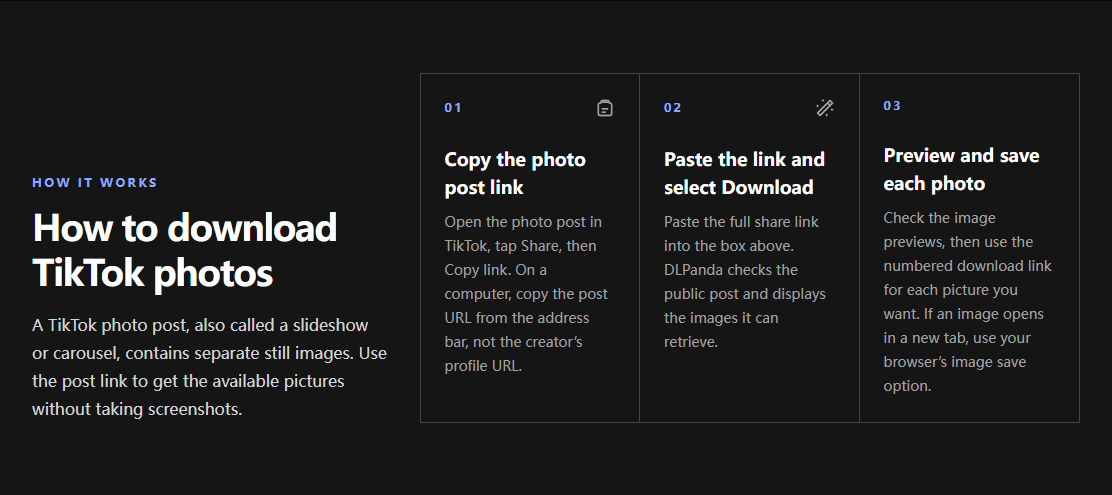
For a public photo post, use the TikTok photo downloader. Paste the post link, check the returned previews, and select the numbered download link for the picture you want. Save the linked image rather than taking a screenshot of the preview grid.
Compare dimensions, not just how large the picture looks
Open the saved file’s information or properties and look for its pixel dimensions. A picture displayed at 400 pixels wide on a page may be a larger file scaled down by the browser. Conversely, enlarging a small preview to fill a desktop monitor makes the same pixels cover more space.
As a simple example, a 720 × 1280 image enlarged to 1440 × 2560 has twice as many display pixels in each direction, but it does not contain twice the source detail. This is an illustration of scaling, not a measurement of a particular TikTok post. Compare files at the same zoom level before deciding that one download method is sharper.
Use the symptom to choose the next step
- The file includes app buttons or the phone status bar: it is a screenshot. Go back to the post link and save the media file.
- Only one slide looks soft: inspect that slide in the original post. Its source may be smaller or more compressed than the others.
- Text is sharp but the background is soft: the creator may have added text over an already compressed image. A different download cannot reconstruct the background.
- The saved picture looks good until you send it in a chat: compare the local original with the received copy. If the messaging app offers a file attachment option, use that to avoid an image-sharing conversion.
- The crop is wrong on your lock screen: check wallpaper zoom and cropping. Download resolution and wallpaper framing are separate issues.
What “original quality” can mean here
DLPanda can return the image made available by the source service. It cannot promise the creator’s camera original or restore detail discarded before the post was uploaded. Converting that downloaded image to PNG can change compatibility and file size; it does not reverse earlier compression.
Keep the best available downloaded file before editing. Crop a copy, and compare it with the original after export. Repeatedly saving an edited image in a lossy format can introduce additional artifacts that were absent from the first download.
Try the native save option too
TikTok documents a Share → Save photo flow where the creator permits downloading. It is a useful alternative to compare with the browser result. See TikTok’s download instructions for the available native options.
If both copies are equally soft at the same size, ask the creator for a higher-resolution original when appropriate. Repeatedly submitting the same post is unlikely to change an image that is already low resolution at the source.